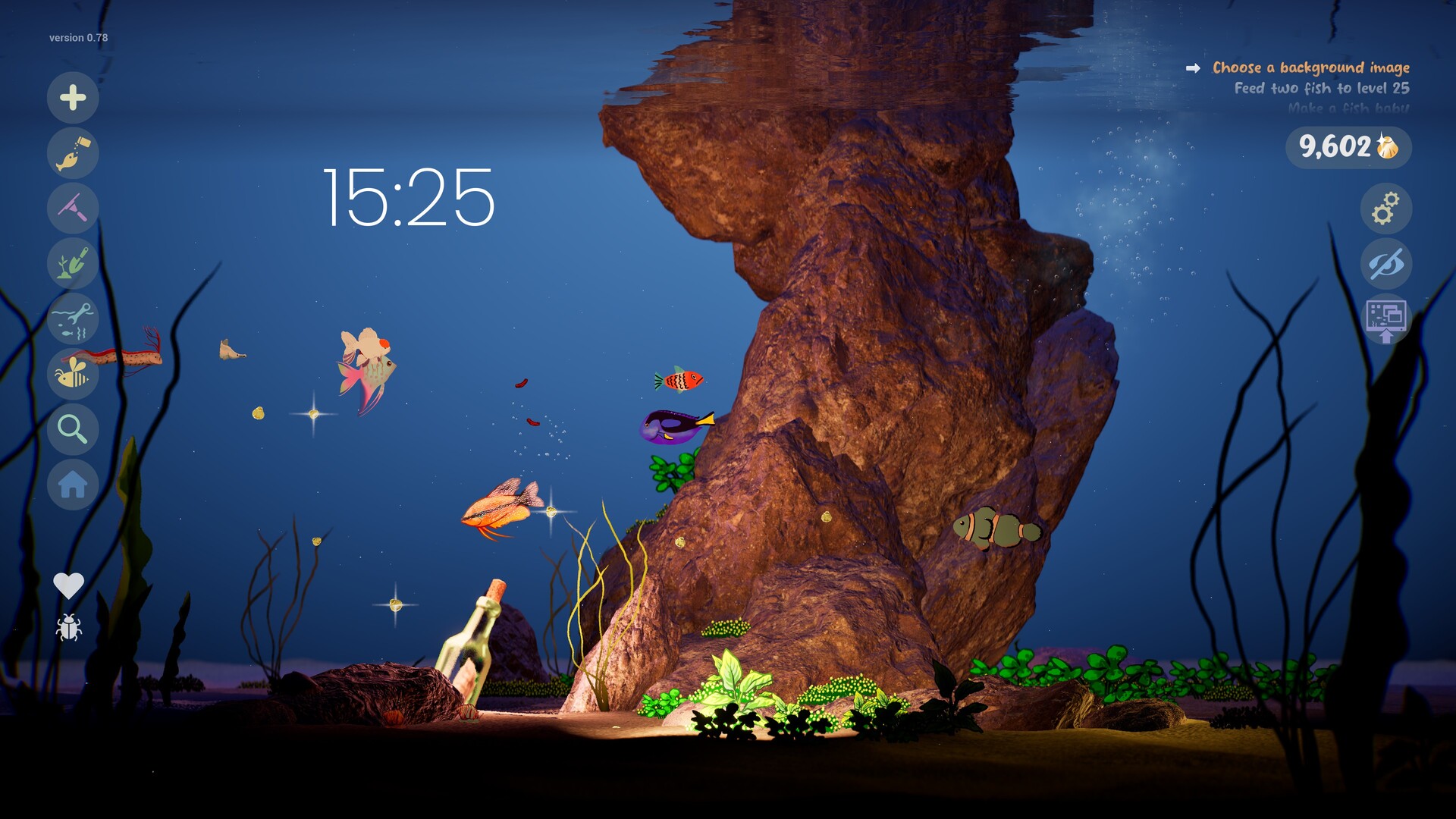
Keep Your Aquarium Beside Your Work
Turn on Desktop Wallpaper Mode to show your Drawquarium aquarium behind the Windows desktop while you continue to watch, feed and play with your fish. Return to the regular game by clicking the Drawquarium icon in the system tray beside the clock.
Enable Wallpaper Mode and Return to the Game
- Turn on Desktop Wallpaper Mode in Drawquarium to display the animated aquarium behind your Windows desktop.
- Feed or play with your fish from the desktop to interact with the aquarium while wallpaper mode is active.
- Click the Drawquarium icon in the system tray beside the clock to return to the regular game view.
The system-tray return action is also shown as Return to Game. Use that route if the wallpaper's back button is hidden behind the taskbar. Try returning to the game before settling into work so you know where the exit is on your desktop.
Set Up the Clock and Focus Tools
Drawquarium includes a journal, a checklist or task manager, a timer and a customizable clock. Use the task manager to organize your day, the timer for focused work and the journal for thoughts you want to keep. These tools are intended to accompany working or studying with the aquarium nearby.
The clock supports the current date and weekday. To show the date beside it, hover over the clock and click date. Set up the tools you want in the regular game view before trying them with your desktop arrangement.
Start with whichever tool fits the work you are already doing. A timer can mark a natural break, while a task list can keep your next action in view. If a tool is not visible in your wallpaper setup, return through the system tray to use the regular game view.
Match the Workaround to the Wallpaper Problem
- For lag or a pixelated wallpaper, try turning off Sleep Mode with the Zzz button in the game. Sleep Mode throttles the wallpaper when it thinks another application covers it; switching it off uses more resources.
- If the back button sits behind the taskbar, click the Drawquarium system-tray icon beside the clock to get back into the game.
- After restarting Windows, allow about a minute for the wallpaper to appear before deciding that startup has failed.
- If the picture is distorted across several monitors, record your display arrangement and the behavior you see, then consult the pinned wallpaper discussion.
- If wallpaper mode is missing or unresponsive, check whether the regular aquarium still works and include that distinction when reporting the problem.
Sleep Mode can mistake another wallpaper application, such as Wallpaper Engine, for something covering the aquarium. That makes the Zzz setting a useful check when the regular game looks fine but the desktop version becomes slow or pixelated. Compare the result after changing it, keeping its higher resource use in mind.
Open the pinned Wallpaper Mode troubleshooting discussion on Steam.
Handle Unusual Monitor and Resolution Setups
Ultrawide monitors, unusual screen arrangements and older computers were specific targets for the developer's wallpaper testing. Treat a display problem according to what happens on your setup rather than expecting a universal resolution change to solve it. Describe whether the aquarium is distorted, absent, frozen or responding differently from the regular game.
Before sending a report, compare the wallpaper with the regular aquarium view. Note whether the problem begins when switching modes or only after the desktop has been in use. This gives support a clearer description than simply saying that the wallpaper does not work.
Prepare a Useful Wallpaper Bug Report
- Describe what happened, what you expected and the steps needed to reproduce the wallpaper problem.
- State whether you are using the demo or full game, and describe your monitor arrangement and display behavior.
- Include a screenshot or the exact error message so support can see the failure you are describing.
- Prepare your DxDiag file by pressing Windows + R, entering dxdiag and choosing Save All Information.